The essentials, together
Large glucose numbers, a trend indicator, reading age, and recent history. Choose mg/dL or mmol/L.
 SugarData
A display. A bridge. Your data.
A dedicated screen for a quick glance. A bridge to bring your sensor readings online. SugarData connects them in one simple place.
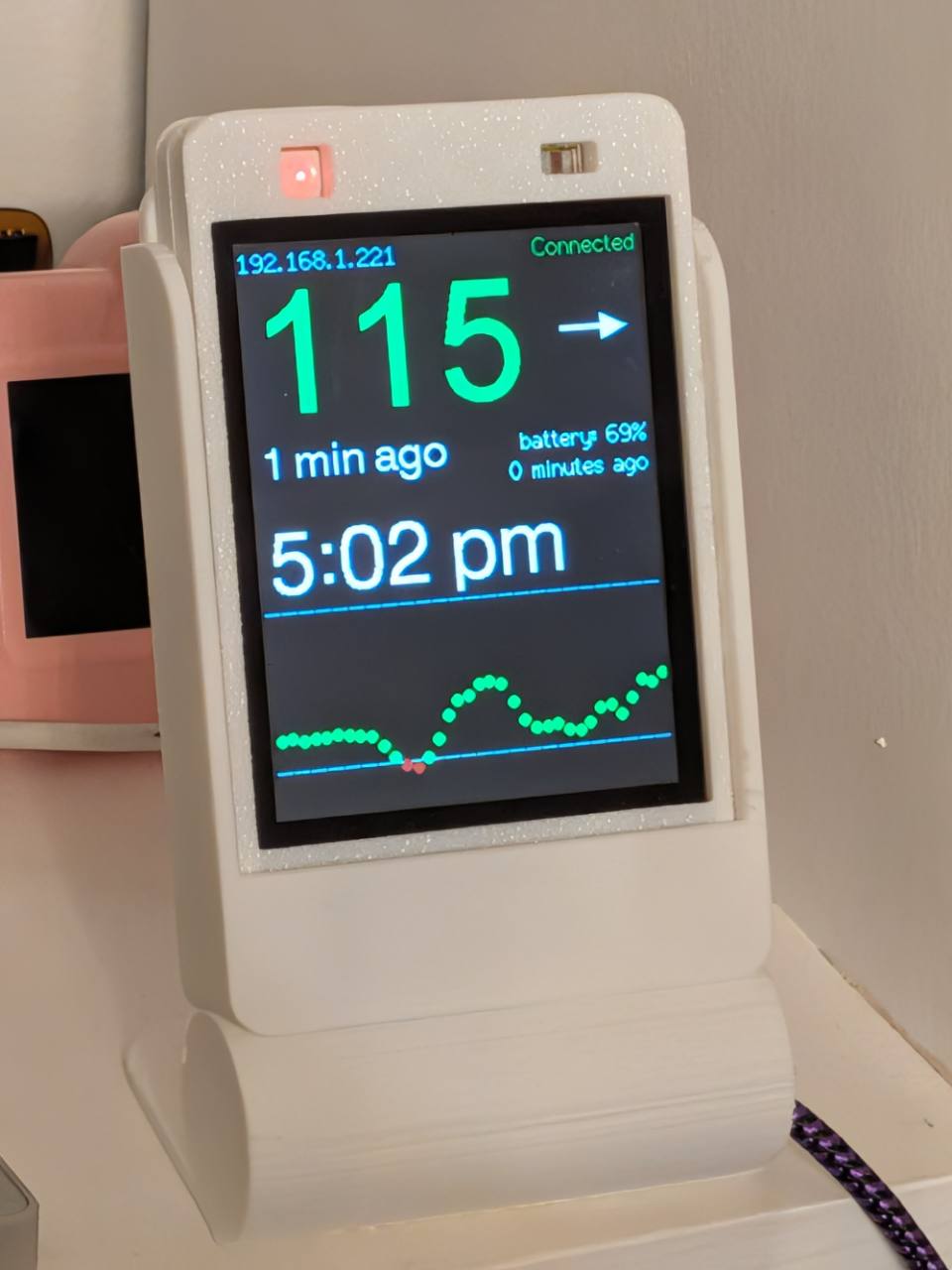
01 / The display
Keep glucose visible on your desk or bedside table. See the reading, where it’s heading, and how recently it arrived.
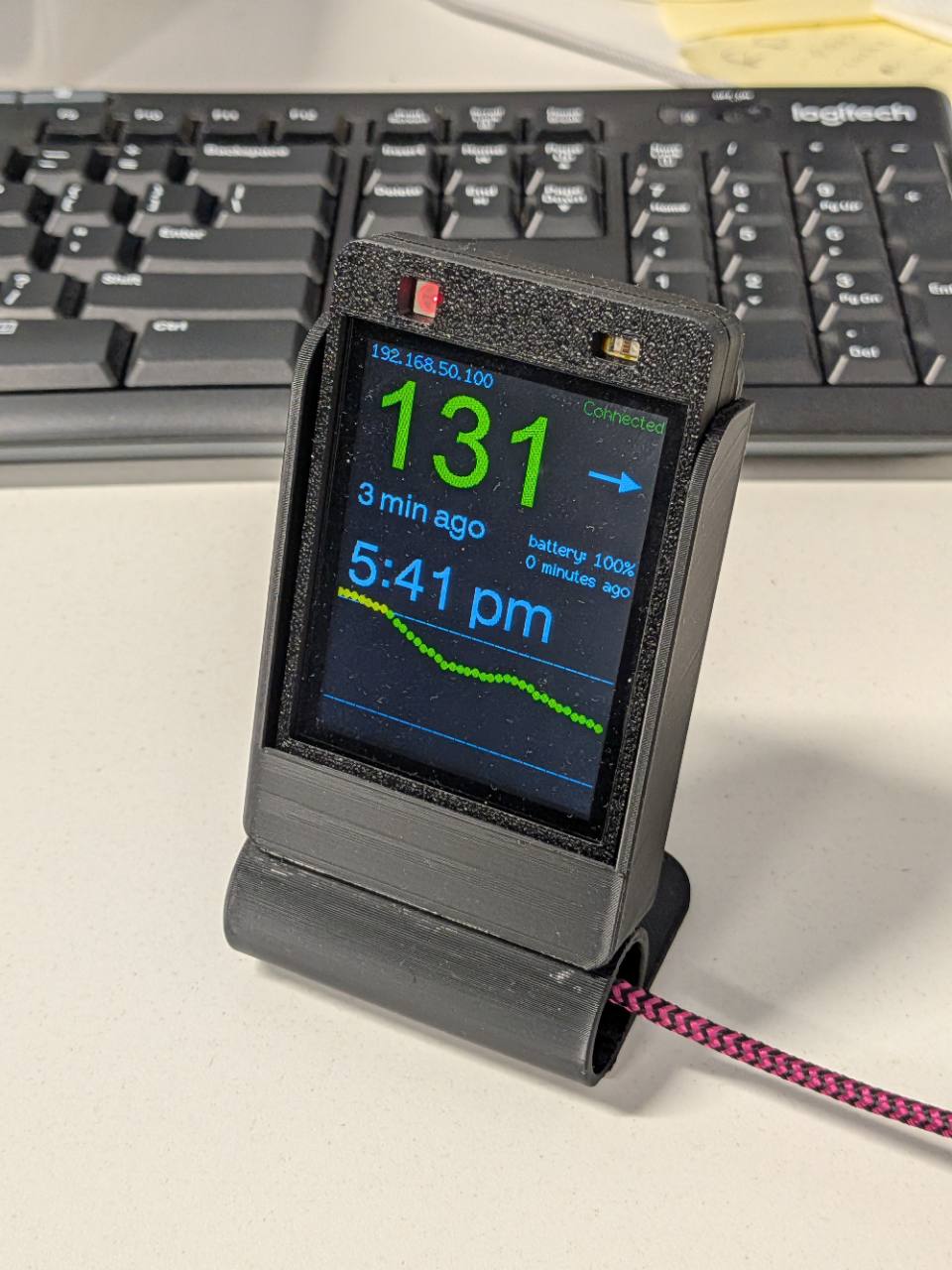
Large glucose numbers, a trend indicator, reading age, and recent history. Choose mg/dL or mmol/L.
Use your own or a shared SugarData bridge, connect an existing Nightscout feed, or read a G7 sensor directly on a supported ESP32-S3 display.
Adjust brightness, units, and display settings. Check device status and install firmware updates from SugarData.
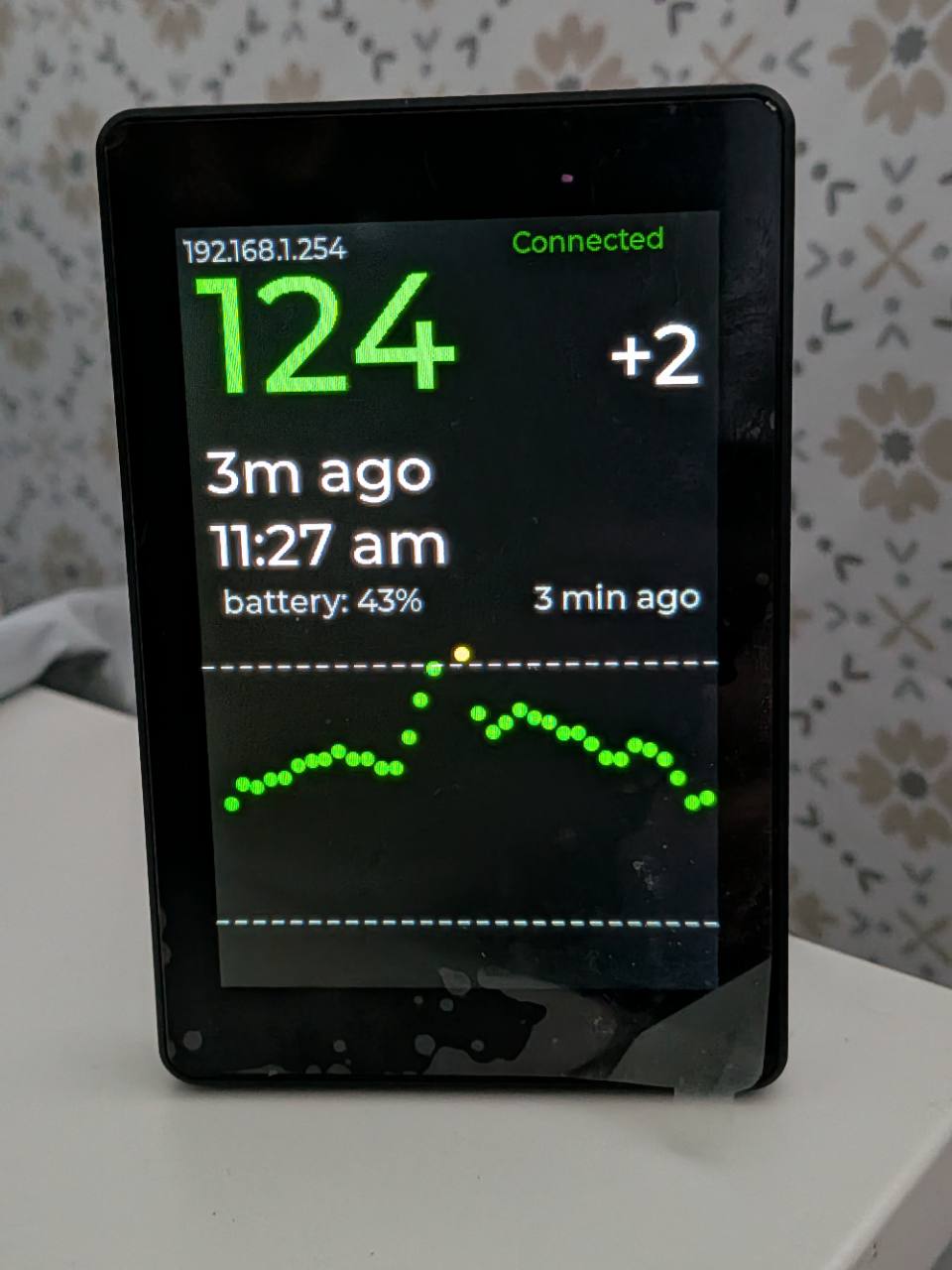
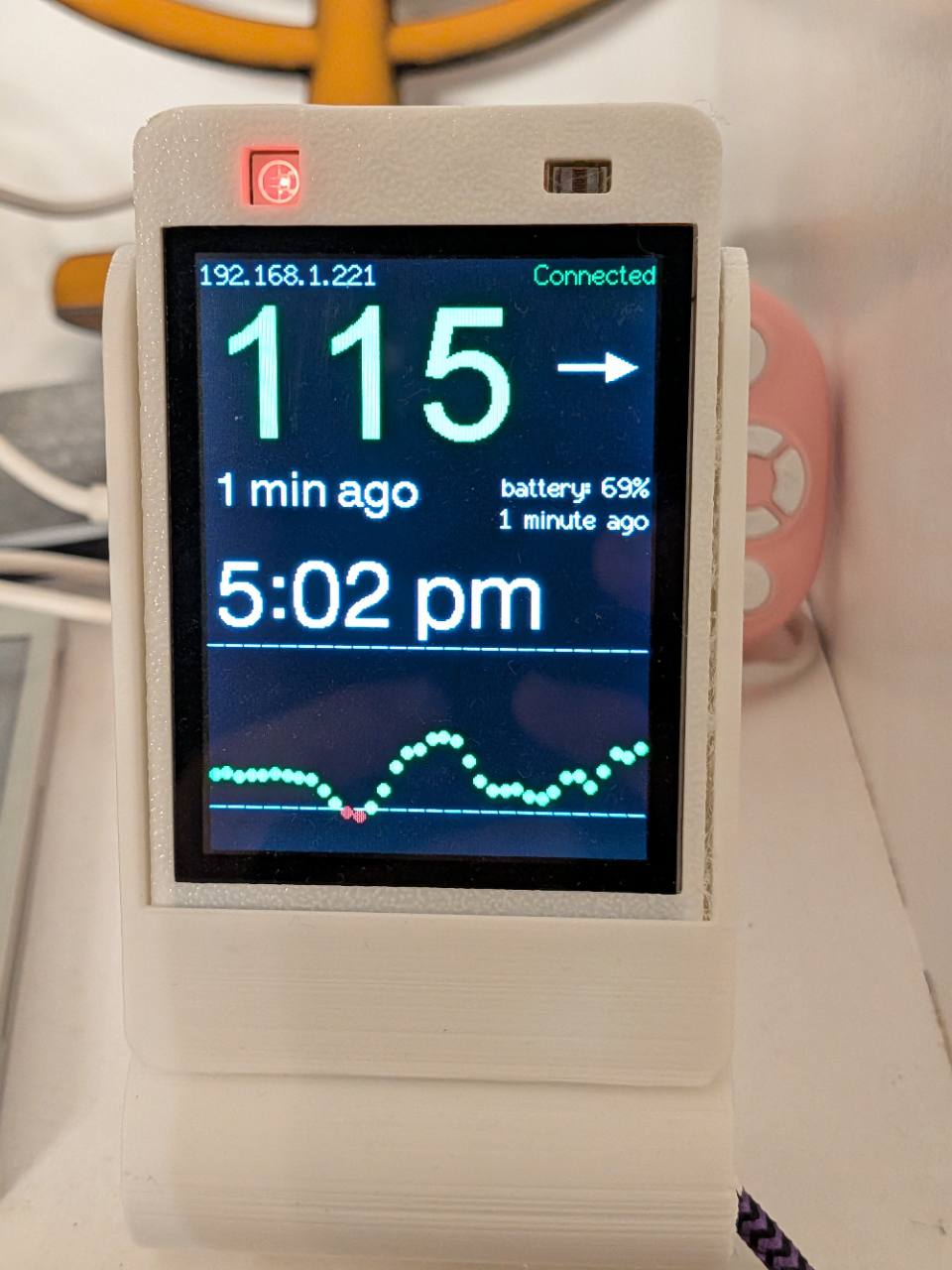
Real project hardware, photographed with earlier firmware. Enclosures and screen layouts vary.
02 / The bridge
A SugarData Bridge reads a G7 sensor over Bluetooth and uploads readings over WiFi. Use a dedicated T-Beam, or let a supported display do both jobs.
Bluetooth readings
T-Beam v1.1
History & sharing
Displays & web app
Keep a dedicated bridge near your sensor. Your other displays receive its readings through SugarData.
Review a seven-day chart in the app, along with sensor status and battery information where supported. Devices can backfill up to six hours of readings.
Give someone a viewer role to see readings, or a manager role to help with settings. Both displays and bridges use the same permissions.
A supported ESP32-S3 display can show your readings and bridge them to SugarData. No separate collector is needed for that setup.
Made for makers
SugarData is open-source firmware and a companion app. Start with compatible hardware and choose the role that fits your space.
Direct Bluetooth collection is supported on the boards listed below. Other display boards use a SugarData or Nightscout feed.
| Hardware | Display | G7 bridge |
|---|---|---|
| LilyGO T-Beam v1.1Dedicated bridge with OLED | OLED | Supported |
| JC3248W535CESP32-S3 portrait display | Supported | Supported |
| Guition 4848ESP32-S3 square display | Supported | Supported |
| Classic ESP32 displaysCYD, CYD 2USB, JC2432 | Supported | Not supported |
Board-specific firmware and setup details are available in the project documentation.
03 / Get connected
Link your hardware once. Manage displays and bridges from the same SugarData account.
Install the firmware for your board. Join its protected SugarData setup network and connect it to your WiFi.
Open the app and sign in with Google. Use your device’s temporary link code to add it to your account.
Connect a sensor to a supported bridge, or select a bridge or Nightscout feed for your display. Add people you want to share with.